As it turns out, I was right to clarify what our friend had installed. Without that detail, we were all just spinning our wheels—though I must admit, you were doing most of the spinning! 

allora, ho approfondito un po, e sono giunto alla semplice conclusione che si è guastata la I2C del chip RV1126, quindi come detto da voi non riparabile, il suddetto chip funziona in 0,8volts in digitale ma per programmazione è andata a 3,3volts e non il contrario. Dal Datasheet del Rv1126/RV1109 indica perfettamente che è stato costruito per lavorare a 0,8, se fatto lavorare a 3,3volt con il tempo porta alla rottura.
quindi amen ho perso il mio ihost.

Regrettably, that’s precisely what occurred—at your own behest, no less. Curious that you didn’t stumble upon any trace of this issue, considering it was once the talk of the town in tech circles.
At this point, your best course of action is to find a repair service capable of replacing the network interface controller chip. While it’s not rocket science, it does demand precision tools for soldering and a magnifying glass with the eyesight of a cobra and a lion.
You can still mess around with WiFi, as in theory it should work.
Best of luck—you’ve got this.
quindi amen ho perso il mio ihost.
No, it maybe not. As @jam3 has pointed out, the Wi-Fi can still work. We definitely can find ways to allow you to manage the Wi-Fi settings. We can also provide a customized OS image just for you with the same DTS settings as darkxst’s, if the ethernet is still working under darkxst’s DTS settings.
Anyway, I think we can still help if you wish to continue using iHost in some way.
continuare ad usare la lan con le impostazioni di darkxst’s porterà alla rottura definitiva del chip, se si potesse usare eWeLink CUBE OS in modalità wifi non sarebbe male. Un’altra cosa, la rottura del chip non riguarda il chip della parte lan “realtek rtl8201fl”, ma proprio il bus di trasmissione del chip primario “Rv1126/RV1109”
If necessary, both can be replaced, can’t they? The question is whether it’s worth it, because the cost might exceed the value of the iHost.
Allow me to express this with a hint of sarcastic emphasis: wisdom (perhaps Italian in origin) tends to arrive only after events have thoroughly eroded the contours of cognitive decency. You truly didn’t foresee this before launching your combinatorial entropic endeavor? Now that full awareness of potential hazards has matured, it is about as useful as a bicycle to a fish. Cheers 
First, I think we could find ways to manage Wi-Fi settings on eWeLink CUBE OS even without ethernet. So you could continue using iHost and it won’t be a waste of money. Let me discuss possible ways with my team next week.
Second, according to our knowledge and experience, the misconfiguration of DTS settings only breaks the ethernet, not the whole SoC.
sicuramente avete piu esperienza di me e non metto in dubbio le vostre parole. Grazie
Hi, we have come up with ways to allow iHost users to manage Wi-Fi settings without ethernet. Here is a general process:
- We provide a Wi-Fi manage tool that could be flashed on to TF card. During flashing, the new Wi-Fi SSID and password must be included.
- Boot iHost from TF card (with this tool and Wi-Fi info flashed)
- During iHost startup process, the LED side strip will change color to indicate: A. booting from TF card is OK, B. Wi-Fi info is correct (AP is connectable), C. Wi-Fi info has been written into eWeLink CUBE OS on the internal eMMC.
- Boot iHost from internal eMMC, wait several minutes, then eWeLink CUBE OS should has connected to AP and is accessible from ihost.local (or IP address).
We are doing technical verification right now. We should be able to complete the verification and finalize the design within 2 or 3 days.
aspetto con ansia, grazie
Hi, we have prepared the Wi-Fi manager image. Please download it from Google Drive: https://drive.google.com/file/d/1VcVGxjcE7vLNJKiCsFnCfKy3BGHF8oVi/view?usp=sharing
Here is how to use it:
-
Flash the iHost_Wi-Fi_Manager image onto your TF card, just like you did many times before.
-
Insert the TF card into your computer again (your computer, not iHost). The filesystem on the TF card should be mounted to your computer, and you will see a disk drive called
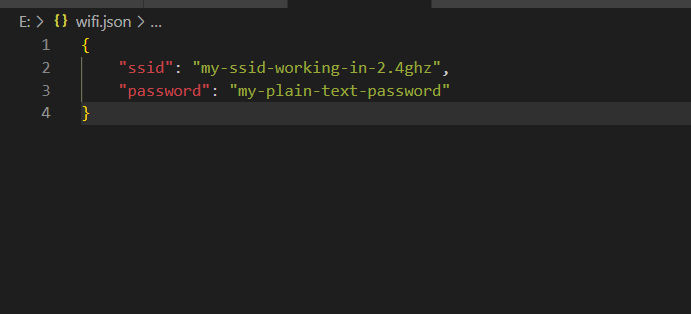
overlay. Open the file namedwifiwith file extension.jsonunderoverlay, fill outssidandpassword. Note, the specified ssid should work in 2.4GHz band. -
Insert the TF card into iHost, and boot iHost from TF card. You should see the
Breathing Bluelighting effect of LED side strip. -
Wait for a moment (should less than 1 minute), the LED side strip should turn into
Breathing Yellow, which means the Wi-Fi manager program is trying to connect iHost to your Wi-Fi router with the SSID and password you specified in step 2.If you see
Breathing Redin this stage, it means iHost can’t connect to your Wi-Fi router. Please double check the SSID and password, and make sure iHost is not far away from your Wi-Fi router.If you see
Rapid Flashing Red, it means there is something wrong writing Wi-Fi info into eWeLink CUBE OS on the internal eMMC.If you see
Solid Red, it means the version of eWeLink CUBE OS on the internal eMMC is too old. The version of eWeLink CUBE OS should be V2.2.0 at least. -
Wait until the LED side strip turns into
Solid Greenwhich means the whole process has been completed and was successful. -
You can then power cycle iHost, and boot it from internal eMMC. Wait for several minutes, the eWeLink CUBE OS should finish starup and connect to WLAN.
If you met any issue using this Wi-Fi manager image, you can insert the TF card back to your computer, and provide us the .logs directory (maybe hidden on Windows) under overlay disk drive.

GRAZIE, ha funzionato al primo colpo!!!
Excellent 
Great news, we are very excited to hear that.
hi all,
Some years ago I contacted this forum because I had exactly the same issue. I installed the darkxst’s HA image and then at some point my ethernet port stop working. But at that time I didn’t receive any help to solve my issue and I could found any workaround form the community, so I decided to put it in a box.
Today I did some cleanup and I found my ihost (brick) and I decided to check again to see if someone found a solution for fixing the ethernet issue.
I ended up in this channel and it was a surprise to find the wifi workaround you posted here.
But it’s not working for me. I flashed the wifi image and set the proper credentials (double checked) but when I power on the iHost and set it to start from TF card (I installed a switch for the maskroms pines so I can easily connect them) I always see the breathing Red light. No blue, yellow, etc
Could it be that the eMMC version is too old? if it’s the case, how can I check it?
Please, could you provide me some help? it could be great to have it working again.
My idea is to run it with the iHost original software because my HA is already running in another server.
Thanks a lot in advance.
Hello, thank you for providing the detailed information. To help us better understand your situation, could we first confirm the current firmware version of your iHost? (If it cannot start up properly, you can try to recall the approximate version from the last time it was working normally.) Thank you for your cooperation!
Thanks a lot for your help.
I cannot connect to the iHost (not able to run it due to the existing problem). Last approximate successful login was on Feb 2024, and I used to upgrade it with the published versions when they were available.
Hope it helps.
Thanks a lot in advance
The ewelink app shows 1.12.0 (not sure if it’s real or a default value when the device is offline) and model number AIBridge-26
Hi again,
thanks a lot for giving me some support on that problem, but could you please provide me some feedback from the last post in which I mention the details about the ihost version?
Once again, thanks a lot 
Hello, the firmware version you are currently using does not support booting iHost from a TF card. We will assist you in flashing a new firmware version, after which you can use the tool above to connect to Wi‑Fi.